How to Submit Print-Ready Files from ONYX Align to ONYX Thrive

ONYX Align allows you to directly submit print-ready files to ONYX Thrive to be ripped and processed for printing. Submitting files from ONYX Align to ONYX Thrive requires a connection to ONYX Thrive via the ONYX Local Connector (OLC).
Table of Contents
- (1) Establish a connection to ONYX Thrive via the ONYX Local Connector (OLC)
- (2) Click on the "Products/Jobs" tab within an Order
- (3) Select the Print Job that contains the Print-Ready File that needs to be submitted to ONYX Thrive
- (4) Click on the "Files" tab within the job
- (5) Click on the Print-Ready File file type
- (6) Upload the Print-Ready File
- (6) Click the "Send to RIP" icon
- (7) Finalize the submission settings for the job
- (7) Click the arrow icon to submit the file to ONYX Thrive
- (8) Review the Thrive Preview
(1) Establish a connection to ONYX Thrive via the ONYX Local Connector (OLC)
-If you need assistance with this, see How to Install the ONYX Local Connector (OLC).
(2) Click on the "Products/Jobs" tab within an Order

(3) Select the Print Job that contains the Print-Ready File that needs to be submitted to ONYX Thrive

(4) Click on the "Files" tab within the job

(5) Click on the Print-Ready File file type
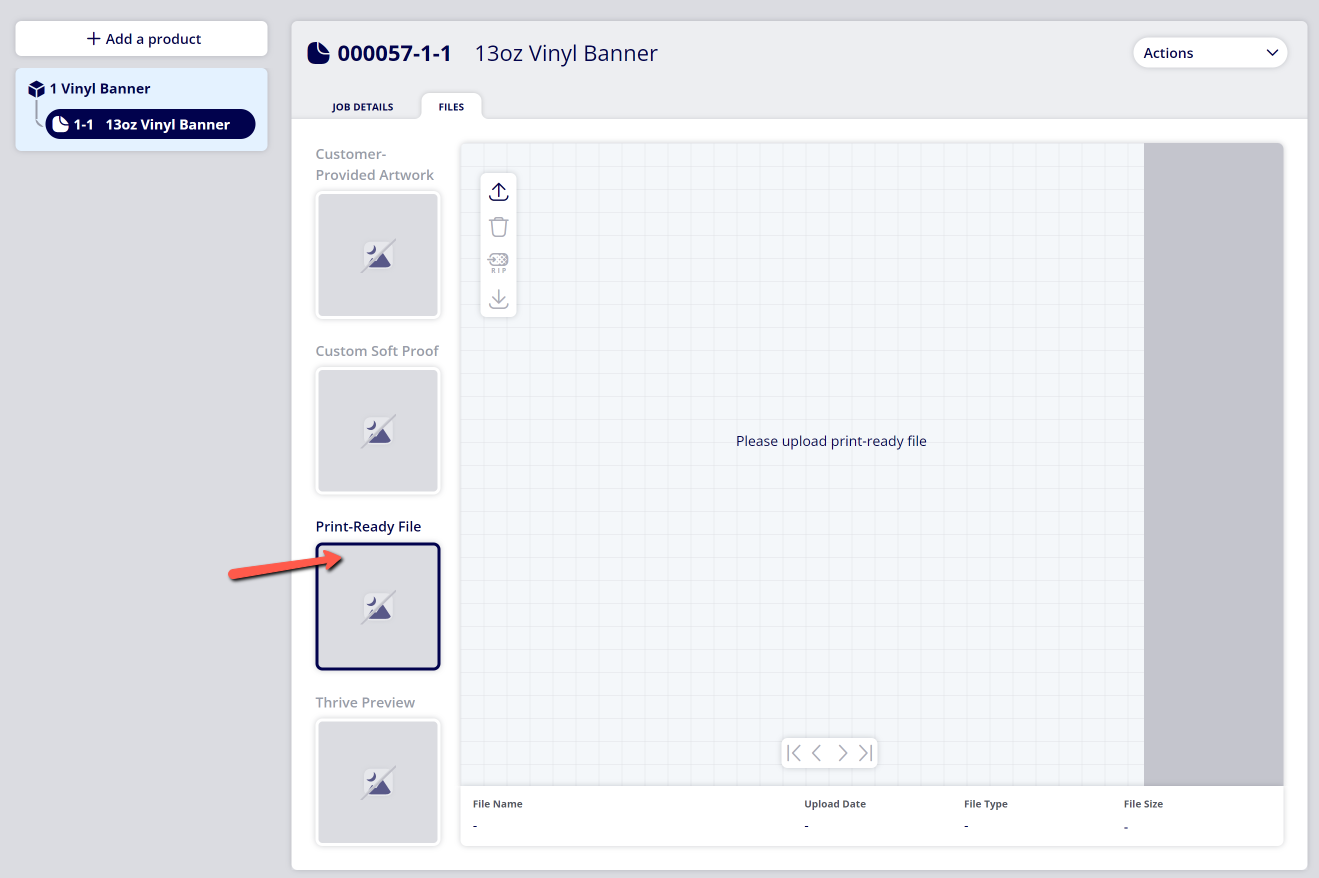
(6) Upload the Print-Ready File
-If you need assistance with uploading the file, see How to Upload Files to a Print Job
(6) Click the "Send to RIP" icon
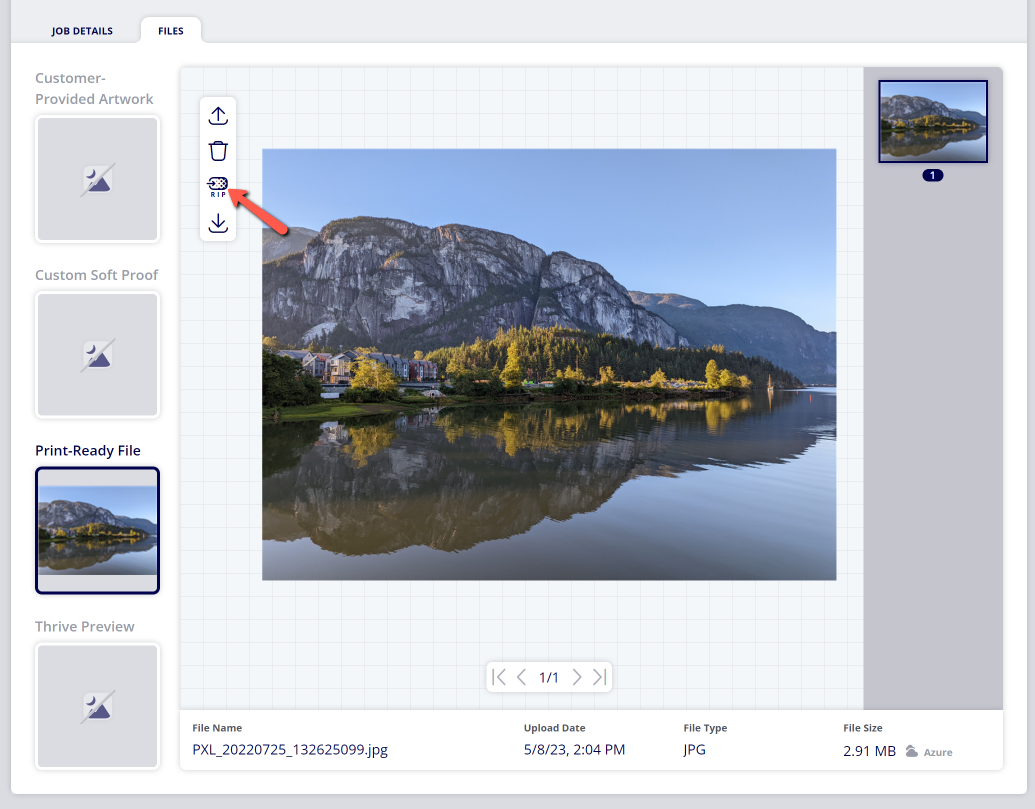
(7) Finalize the submission settings for the job
|
Setting |
Description |
|---|---|
|
Printer |
The printer assigned to the job. |
|
Substrate |
The substrate the job will be printed on. |
|
Quickset |
The quickset used for the job when submitted to ONYX Thrive |
|
Activate Quickset |
Determine whether or not you want to apply the selected quickset to the job when it is submitted to ONYX Thrive. |
|
Media Profile |
The media profile used for the job when submitted to ONYX Thrive. |
|
Print Mode |
The print mode used for the job when submitted to ONYX Thrive. |
(7) Click the arrow icon to submit the file to ONYX Thrive
(8) Review the Thrive Preview
-When the Print-Ready File has successfully been submitted to ONYX Thrive and has been ripped/processed, a preview of the ripped file will be available within ONYX Align.
Attachments:
 image-2023-3-22_10-57-59.png (image/png)
 image-2022-11-29_14-48-3.png (image/png)
 image-2022-11-29_14-48-3-1.png (image/png)
 image-2022-11-29_14-48-3-2.png (image/png)
 image-2022-11-29_14-48-3-3.png (image/png)
 image-2022-11-29_14-48-3-4.png (image/png)
 image-2022-11-29_14-48-3-5.png (image/png)
 image-2022-11-29_14-50-3.png (image/png)
 image-2022-11-29_14-51-12.png (image/png)
 image-2022-11-29_14-51-30.png (image/png)
 image-2022-11-29_14-51-52.png (image/png)
 image-2022-11-29_14-52-45.png (image/png)
 image-2022-11-29_15-1-12.png (image/png)
 image-2022-11-29_15-1-39.png (image/png)
 image-2022-11-29_15-6-36.png (image/png)
 image-2022-11-30_7-56-32.png (image/png)
 image-2022-11-30_7-57-8.png (image/png)
 image-2023-1-24_14-50-7.png (image/png)
 image-2023-3-7_10-54-1.png (image/png)
 image-2023-3-7_10-54-27.png (image/png)
 image-2023-3-7_10-55-36.png (image/png)
 image-2023-3-7_12-56-40.png (image/png)
 image-2023-5-8_14-2-31.png (image/png)
 image-2023-5-8_14-3-55.png (image/png)
 image-2023-5-8_14-5-39.png (image/png)
