How to Edit User Settings

Table of Contents
- (1) Navigate to Configuration > Company Management > User settings
- (2) Select the User you would like to edit
- (3) Editing the email address tied to the User
- (4) Editing Role Groups assigned to the User
- (5) Editing Departments assigned to the User
- (6) Enable or Disable Configuration Tooltips
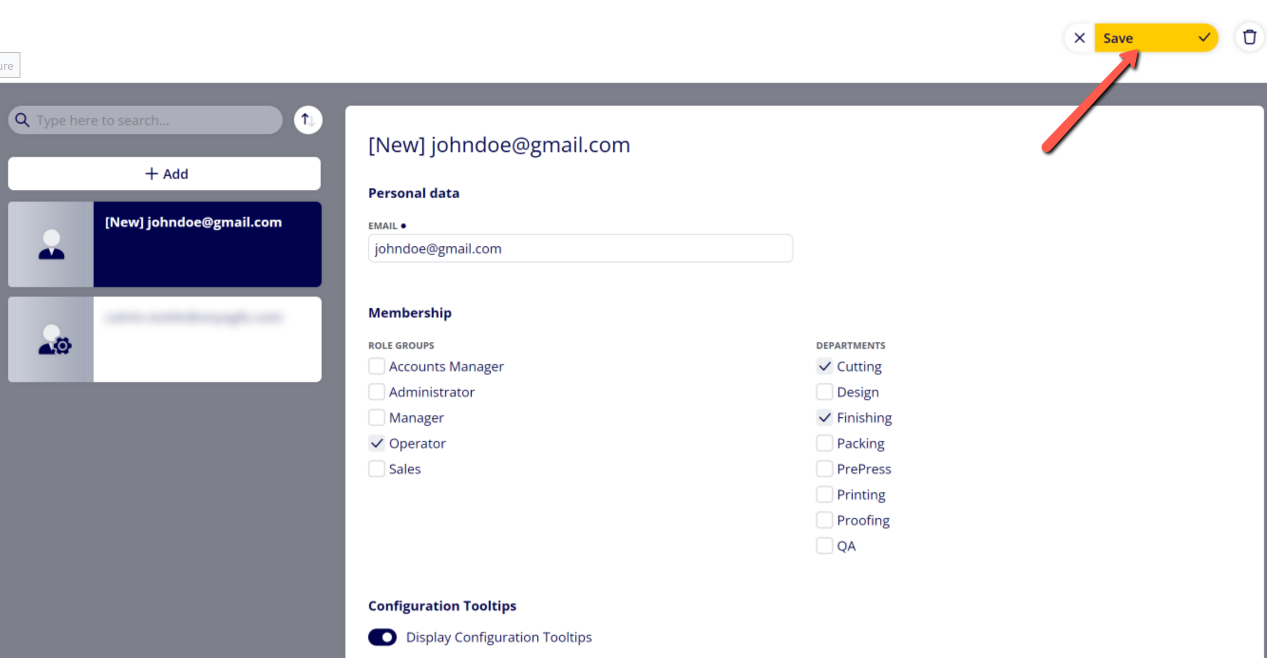
- (7) Click "Save" to save your changes
(1) Navigate to Configuration > Company Management > User settings
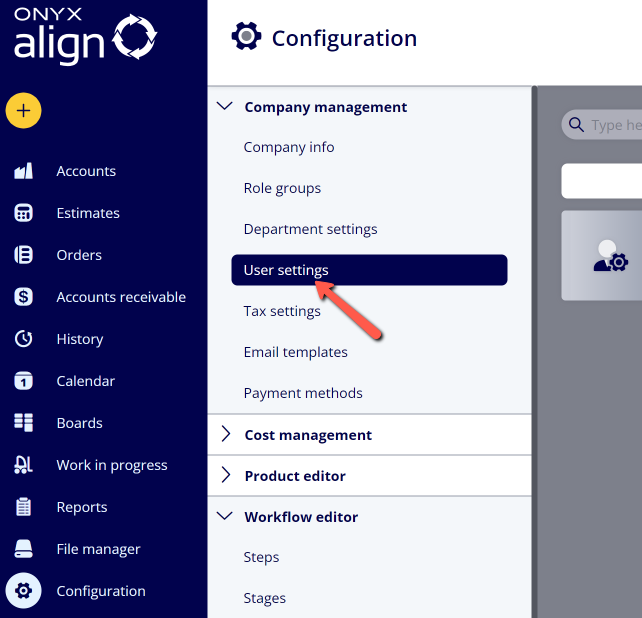
(2) Select the User you would like to edit
(3) Editing the email address tied to the User
-You are unable to change the email address associated to the User.
-If you need to make a change to the email address, you will need to delete the User and create a new User with the correct email address.
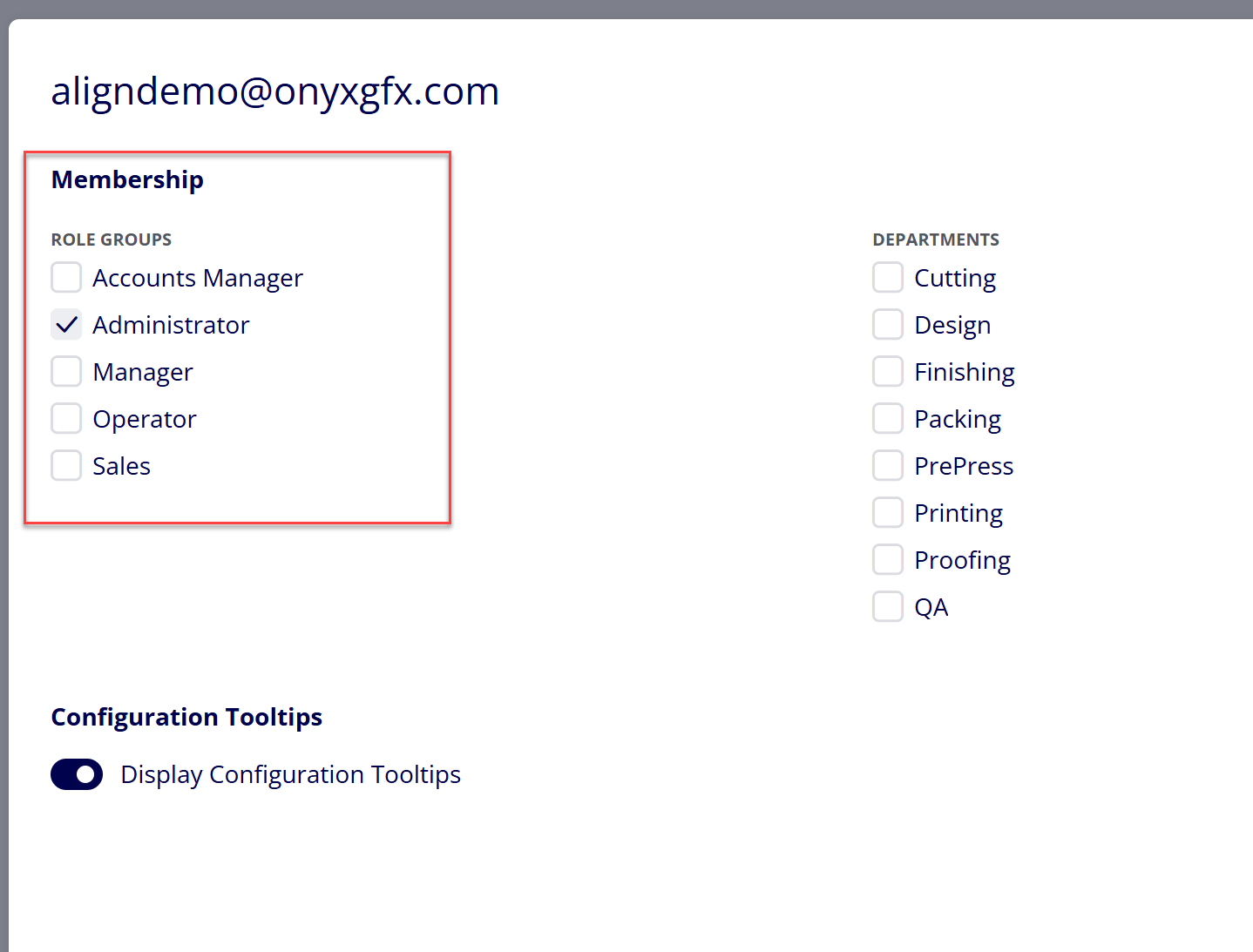
(4) Editing Role Groups assigned to the User
-Select the Role Groups you want to assign to the User within Membership > Role Groups.
-To create and edit Role Groups, see How to Create Role Groups.
-Note that the User must belong to at lease one Role Group.
-If desired, a User can belong to multiple Role Groups.
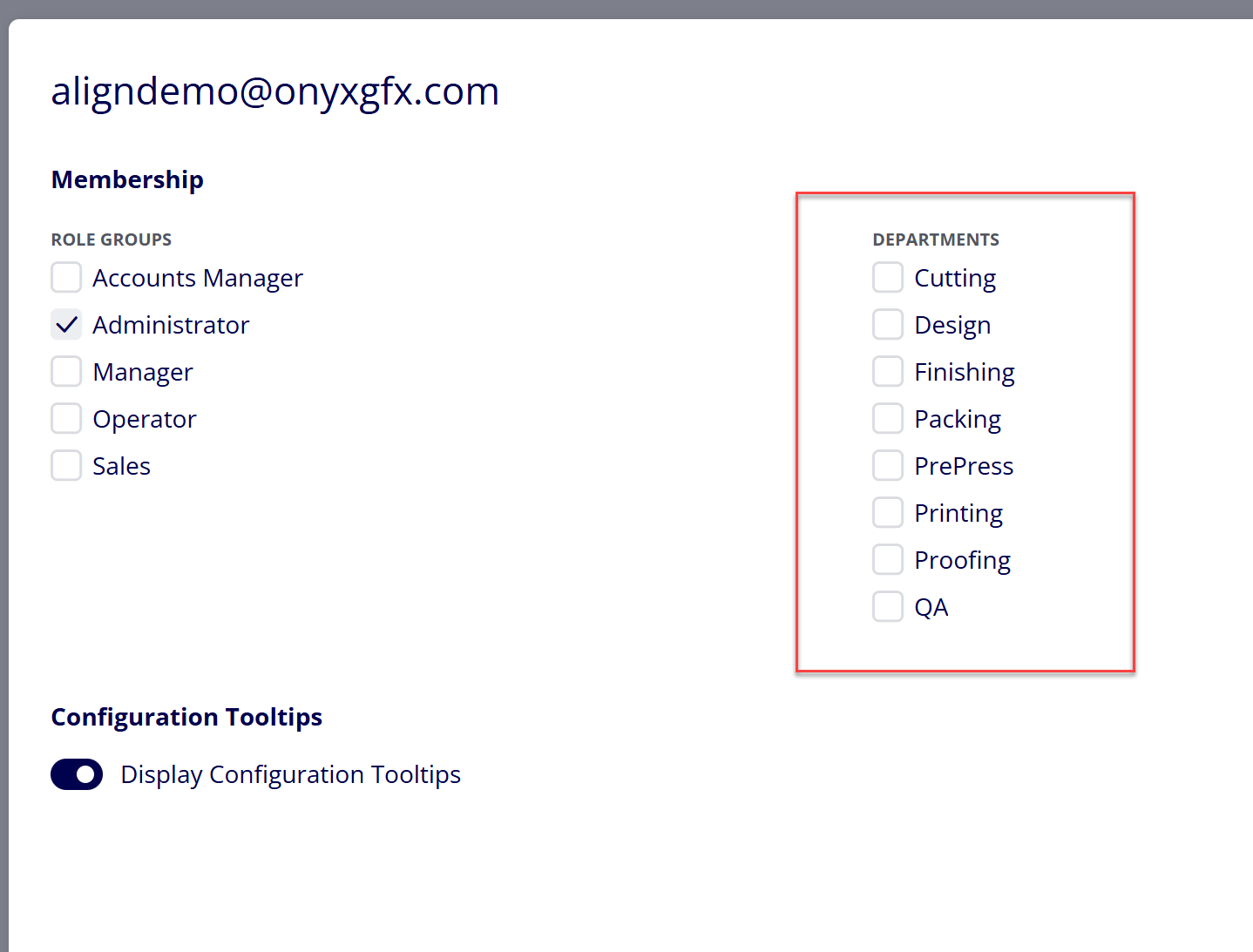
(5) Editing Departments assigned to the User
-Select the Departments you want to assign to the User within Membership > Departments
-If desired, a User can belong to multiple Departments.
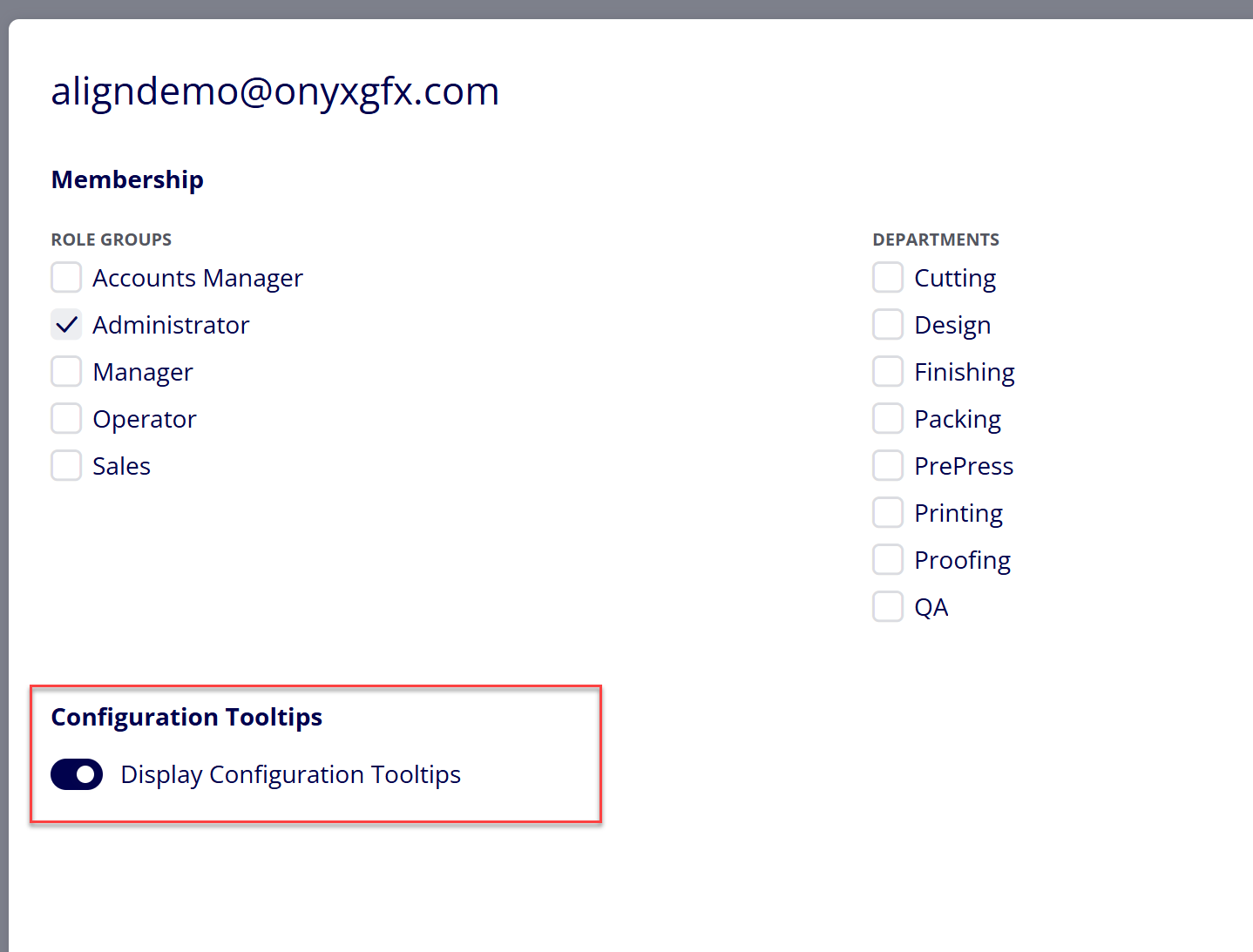
(6) Enable or Disable Configuration Tooltips
-Configuration Tooltips are explanatory tooltips that appear when you hover over key sections and subsections within Configuration
(7) Click "Save" to save your changes
Attachments:
 image-2023-3-7_12-13-19.png (image/png)
 image-2023-3-7_12-11-46.png (image/png)
 image-2023-3-7_11-56-49.png (image/png)
 image-2023-3-7_11-52-17.png (image/png)
 image-2023-3-7_10-55-36.png (image/png)
 image-2023-3-7_10-54-27.png (image/png)
 image-2023-3-7_10-54-1.png (image/png)
 image-2023-1-24_14-50-7.png (image/png)
 image-2022-11-30_7-57-8.png (image/png)
 image-2022-11-30_7-56-32.png (image/png)
 image-2022-11-29_15-6-36.png (image/png)
 image-2022-11-29_15-1-39.png (image/png)
 image-2022-11-29_15-1-12.png (image/png)
 image-2022-11-29_14-52-45.png (image/png)
 image-2022-11-29_14-51-52.png (image/png)
 image-2022-11-29_14-51-30.png (image/png)
 image-2022-11-29_14-51-12.png (image/png)
 image-2022-11-29_14-50-3.png (image/png)
 image-2022-11-29_14-48-3-5.png (image/png)
 image-2022-11-29_14-48-3-4.png (image/png)
 image-2022-11-29_14-48-3-3.png (image/png)
 image-2022-11-29_14-48-3-2.png (image/png)
 image-2022-11-29_14-48-3-1.png (image/png)
 image-2022-11-29_14-48-3.png (image/png)
 image-2023-3-7_11-4-19.png (image/png)
 image-2023-3-7_11-4-27.png (image/png)
 image-2023-3-7_11-4-41.png (image/png)
 image-2023-3-7_11-7-36.png (image/png)
 image-2023-3-7_11-10-42.png (image/png)
 image-20241031-122922.png (image/png)
 image-20241031-122951.png (image/png)
 image-20241031-123010.png (image/png)
