How to Duplicate a Modifier

Table of Contents
(1) Navigate to Configuration > Cost management > Modifiers
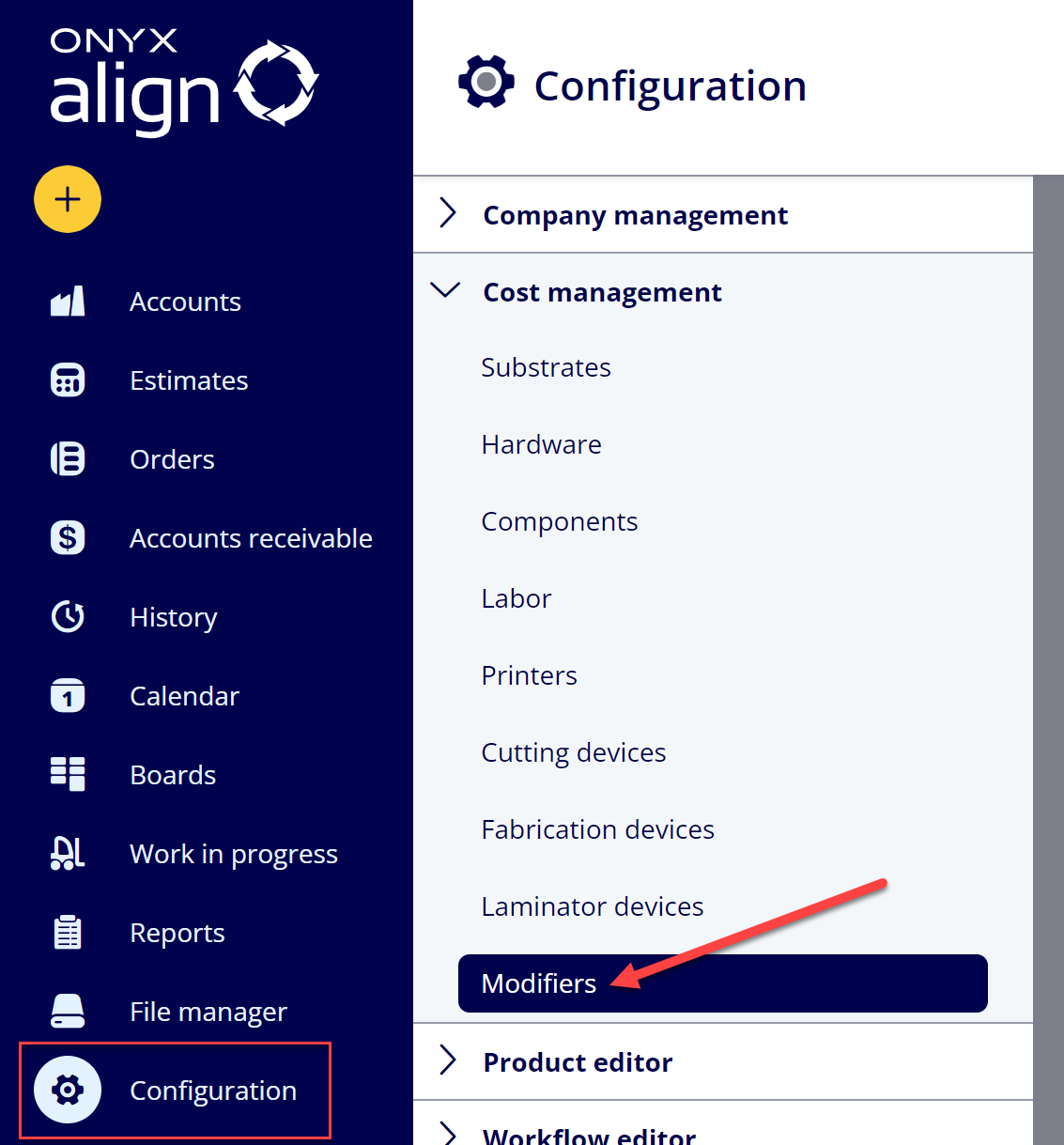
(2) Select the Modifier you wish to duplicate
Note: If you need to create a new Modifier, please refer to the How to Create a Modifier support guide.
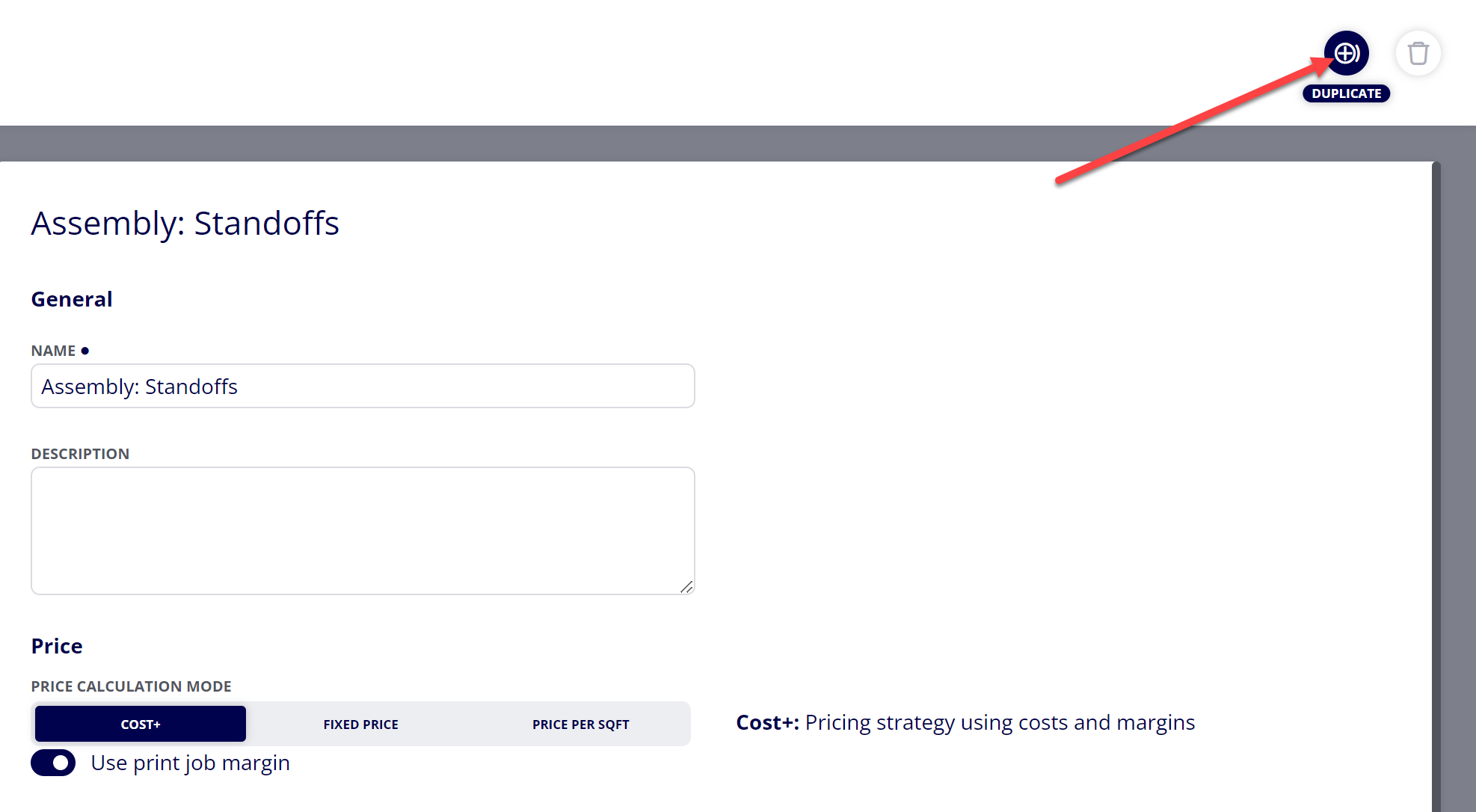
(3) Click the “Duplicate” button in the top right corner of the screen
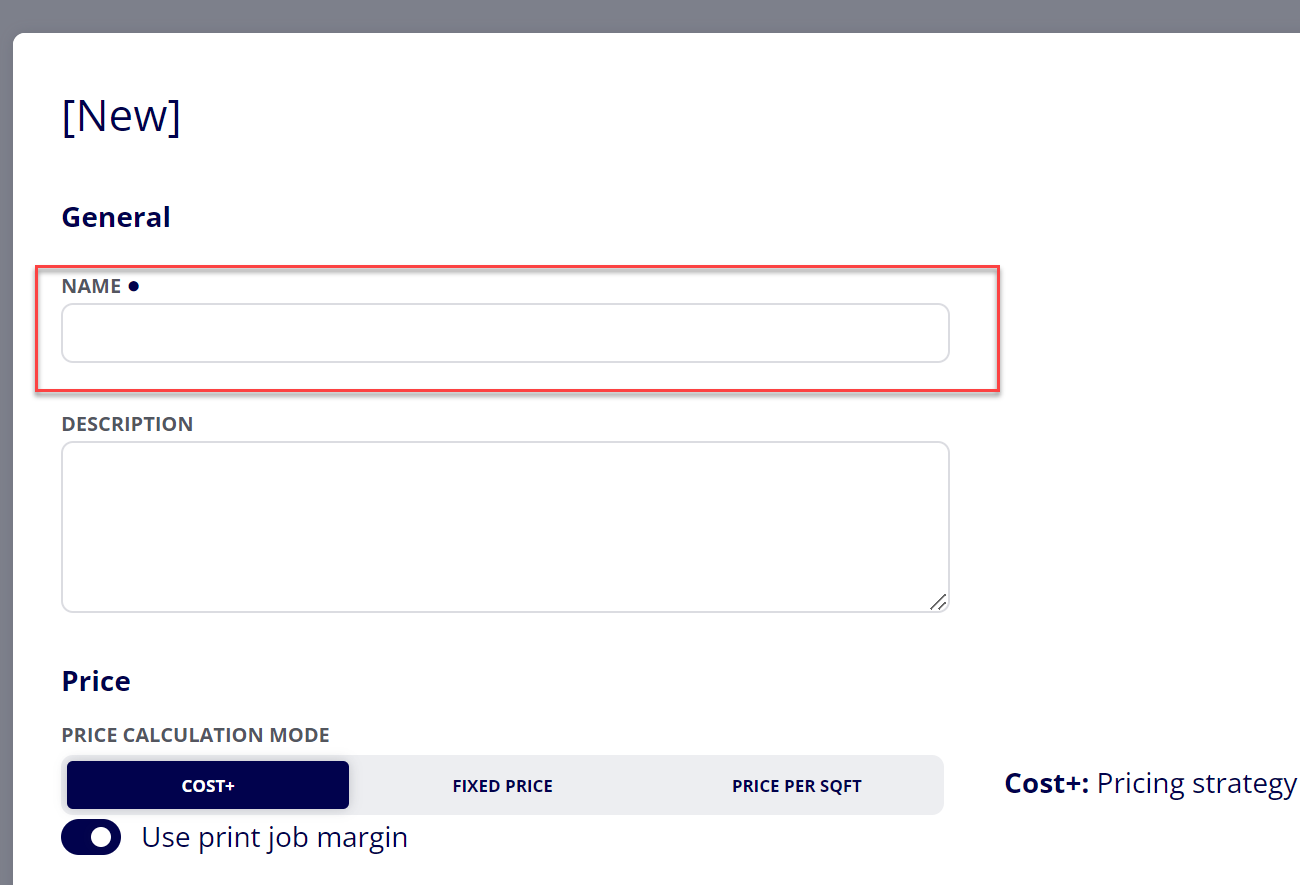
(4) Provide a Name for the new Modifier
Note: The new Modifier must contain a unique name in order to be saved.
(5) Make any other desired changes to the new Modifier
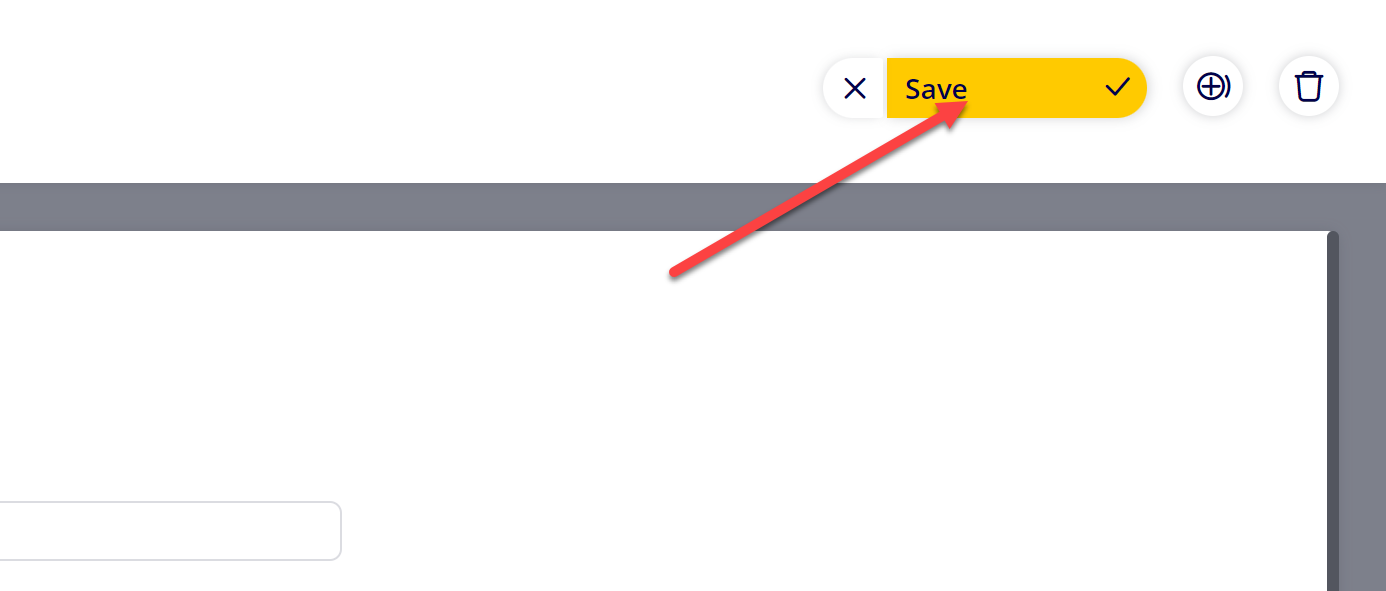
(6) Click “Save”
Attachments:
 image-20240627-184013.png (image/png)
 image-20240627-183948.png (image/png)
 image-20240627-183926.png (image/png)
 image-20240627-183857.png (image/png)
 image-20240627-183829.png (image/png)
 image-20240117-210948.png (image/png)
 2019 ONYX align PANTONE.png (image/png)
 image-20241008-124453.png (image/png)
 image-20241008-124737.png (image/png)
 image-20241008-124916.png (image/png)
 image-20241008-125016.png (image/png)
