How to Create a New Tax Rate

ONYX Align allows you to add tax rates to your system settings which can be assigned to specific customer Accounts or Orders. When a tax rate is applied to an Order, it will calculate total tax for the Order based on the tax rate selected.
Table of Contents
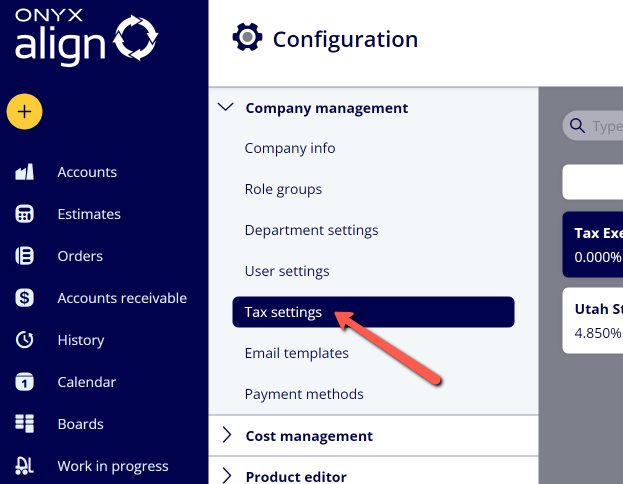
(1) Navigate to Configuration > Company management > Tax settings
(2) Click "+ Add"
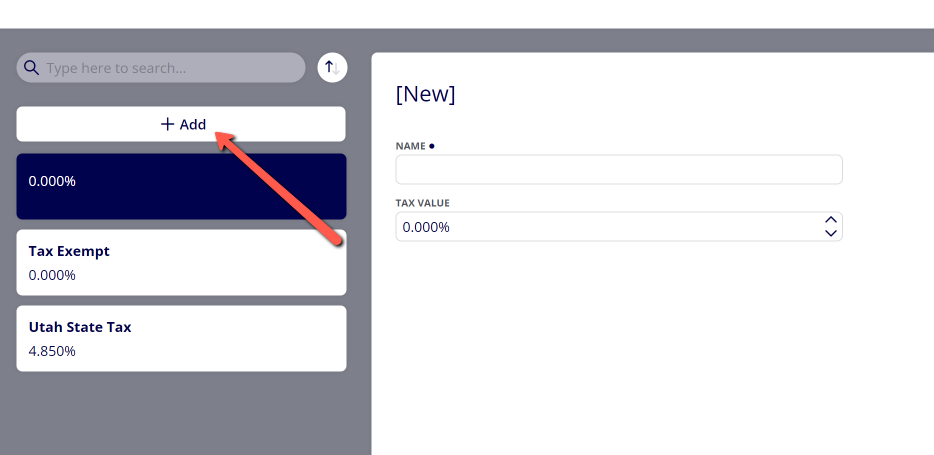
(3) Provide information for the new tax rate
|
Field |
Description |
|---|---|
|
Name |
The name of the tax rate that will be displayed throughout the system. |
|
Agency Name |
The name of the tax agency this tax rate falls under. Note: A list of compatible agencies will be available if you have connected your account to QuickBooks Online. |
|
Active |
Determines whether or not the tax rate is active. When active, it will appear as an option when selecting a tax rate for Accounts or Orders. When inactive, it will not appear as an option when selecting a tax rate for Accounts or Orders. |
|
Use Tax Components |
Determines whether or not the tax rate is comprised of multiple tax components. |
|
Tax Components |
The individual tax components that make up the final tax rate. Note: This is only available if “Use Tax Components” is enabled. |
|
Overall Tax Value |
The % value for the tax rate. Note: If you are not using tax components, you will enter in a value in this field. If you are using tax components, the value in this field will be a sum of the tax component values you have provided. |
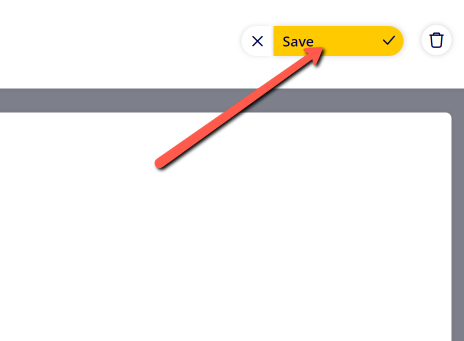
(4) Click "Save"
Attachments:
 image-2023-3-22_10-57-59.png (image/png)
 image-2022-11-29_14-48-3.png (image/png)
 image-2022-11-29_14-48-3-1.png (image/png)
 image-2022-11-29_14-48-3-2.png (image/png)
 image-2022-11-29_14-48-3-3.png (image/png)
 image-2022-11-29_14-48-3-4.png (image/png)
 image-2022-11-29_14-48-3-5.png (image/png)
 image-2022-11-29_14-50-3.png (image/png)
 image-2022-11-29_14-51-12.png (image/png)
 image-2022-11-29_14-51-30.png (image/png)
 image-2022-11-29_14-51-52.png (image/png)
 image-2022-11-29_14-52-45.png (image/png)
 image-2022-11-29_15-1-12.png (image/png)
 image-2022-11-29_15-1-39.png (image/png)
 image-2022-11-29_15-6-36.png (image/png)
 image-2022-11-30_7-56-32.png (image/png)
 image-2022-11-30_7-57-8.png (image/png)
 image-2023-1-24_14-50-7.png (image/png)
 image-2023-3-7_10-54-1.png (image/png)
 image-2023-3-7_10-54-27.png (image/png)
 image-2023-3-7_10-55-36.png (image/png)
 image-2023-3-7_12-56-40.png (image/png)
 image-2023-5-30_14-21-17.png (image/png)
 image-2023-5-30_14-23-33.png (image/png)
 image-2023-5-30_14-26-3.png (image/png)
