Additional Image View Tools in Layout Tool
To help you visualize and organize your images more effectively, the Layout Tool provides several useful tools and viewing options on the main screen:
Preview Drop-Down Menu 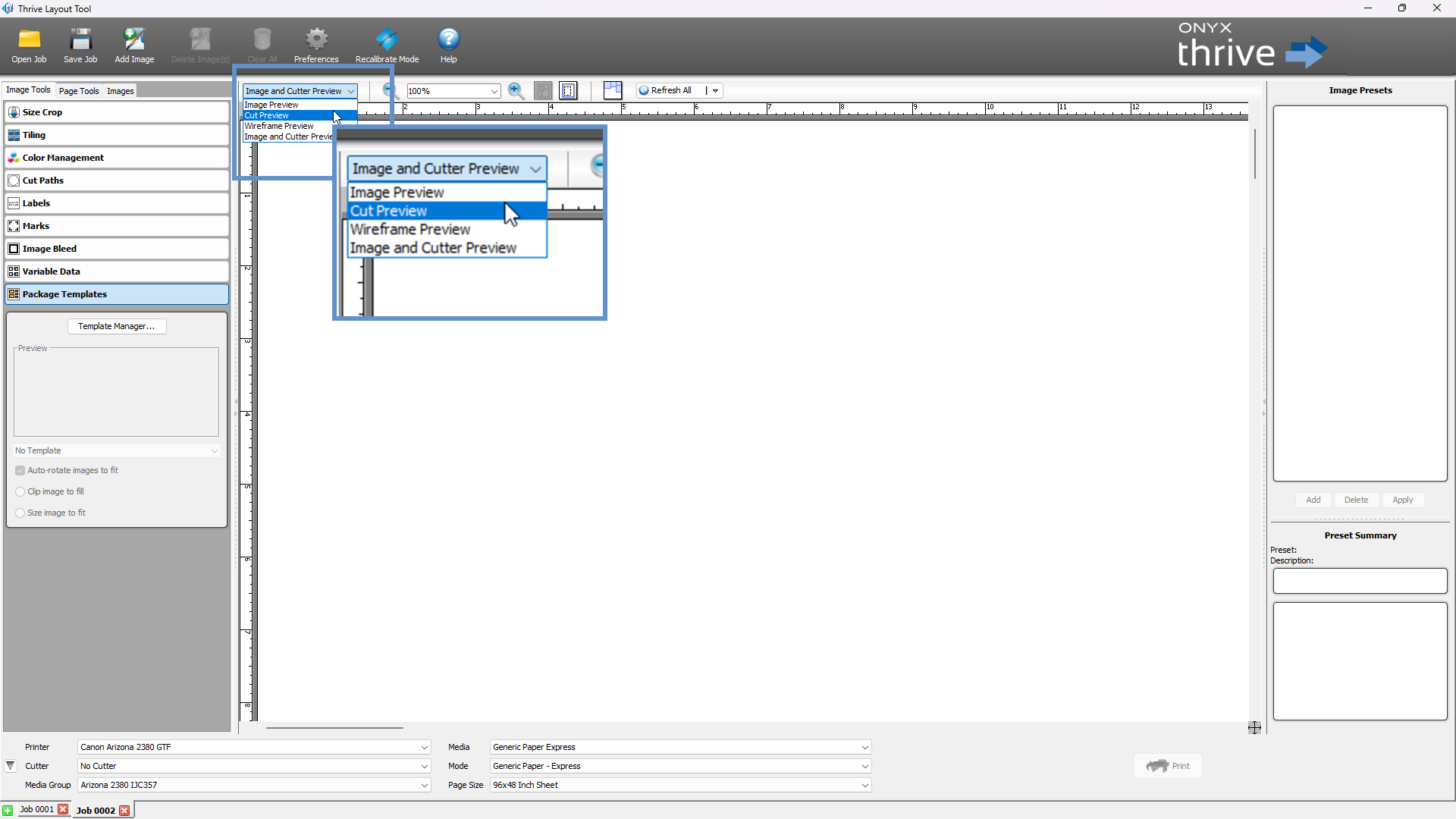
Use the [Preview] drop-down to switch between different display modes for your layout:
-
Image Preview: Displays images exactly as they will appear when printed.
-
Wireframe Preview: Shows placeholder frames for each image. If the frame is large enough, it will display the filename.
-
Cut Preview: Displays only contour cut paths in light blue—no images are shown.
-
Image and Cutter Preview: Shows both the image and its associated cut paths for review before printing and cutting.
Refresh Button 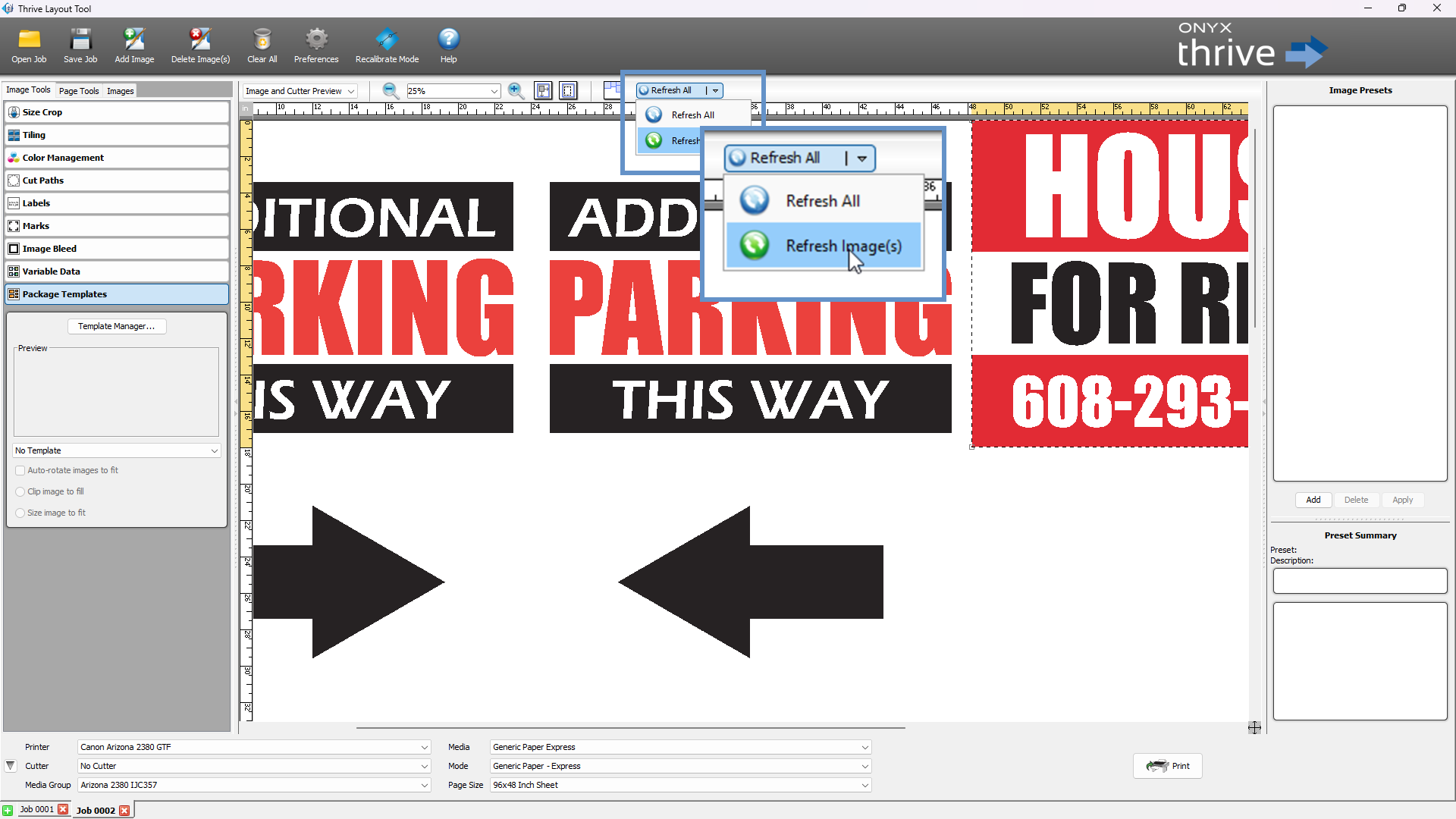
Refresh your view of the layout when making changes:
-
Click the [Refresh] button to update image displays.
-
Use the down-arrow to choose:
-
Refresh Images: Refresh selected images only.
-
Refresh All: Refresh all loaded images.
-
Auto Arrange Tiles Button 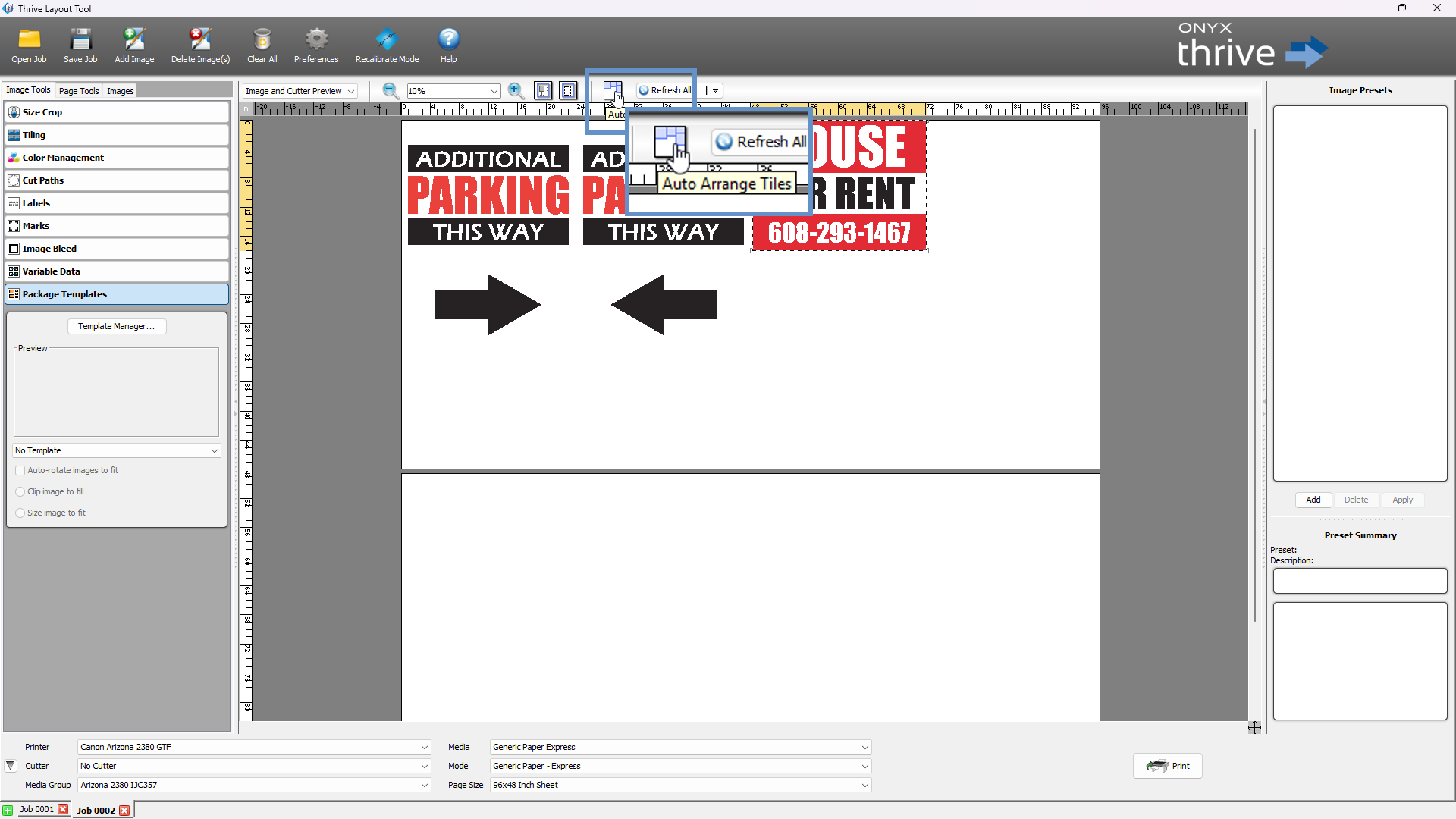
Automatically reorganizes image placement:
-
By default, uses Left Justification.
-
Change alignment to Right or Center Justification:
-
Right-click on the layout screen → Select [Layout] → Choose your alignment.
-
Or adjust this in the [Page Tools] tab.
-
Zoom Controls 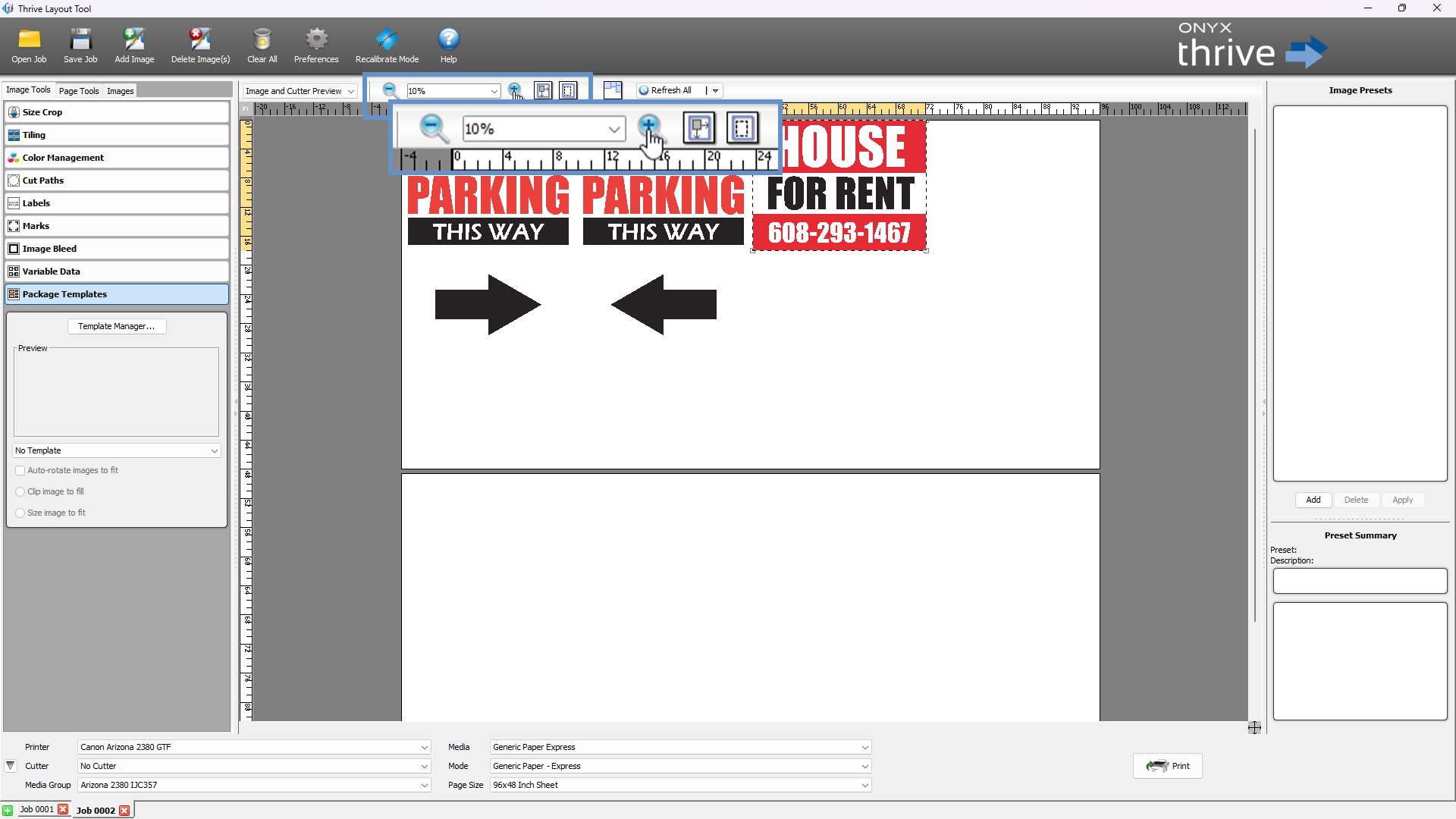
Fine-tune your view of the layout using various zoom tools:
-
Use the Plus [+] or Minus [–] magnifying icons.
-
Click the drop-down to select a preset zoom level.
-
Manually enter a zoom percentage (10%–400%).
-
Zoom to Selected Tile: Centers and zooms in on the selected image.
-
Drag to Define Zoom: Click and drag to draw a zoom area on the layout.