| File Menu | |
|---|---|
|
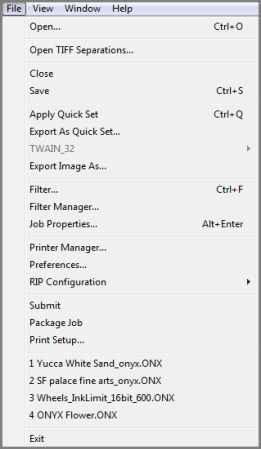
The File Menu gives you quick access to tools that let you manage your application.
You can open the File Menu by going to the main screen and clicking [File] on the main toolbar. Once the File Menu opens, you can choose from the following options:
 Open Open
This option allows you to open single images. See [Opening an Image] for more information.
Open TIFF Separations...
This option allows you to open a TIFF file that contains separated images from a folder when using [Colorways] option for textile. Check [Use Colorways] and click [Select…] button. Choose a file where it is located. See ONYX Tutorial and White paper for more information.
Close
This option closes the current job. If you have made changes to the job without saving, you will be asked if you want to save your changes.
Save
This option will save any changes you have made to the job file (not the original image file).
Apply Quick Set
This option allows you to quickly change the job setting to Quick Set that has already been configured.
Export as Quick Sets
This option will take the job settings you currently have configured for the open image and save those as a Quick Set file. You can select additional workflow options in the dialog before saving.
Export Image As
[Export Image As] exports your image to a raster image file. See Export Image As for more information.
Filter
The [Filter\ option opens the Filter dialog box. Use the dialog to attach a filter to a specific job, choose how to display the filter, and open the Filter Manager. See Color Correction Tab - Filters for more information.
Filter Manager
[Filter Manager ]manages the Color Correction Filters associated with your job. See Filter Manager for more information.
Job Properties
Job Properties changes the display or PostScript properties of the job. See Job Properties for more information.
Printer Manager
The [Printer Manager] sets which printers are available in Job Editor. See Printer Manager for more information.
Preferences
The Preferences option controls how Job Editor deals with jobs in general as well as specifying the monitor profile used by Job Editor. See Preferences for more information.
RIP Configuration
This option allows you to Configure RIP Options. You can configure your RIP selecting the option name.
Submit
[Submit] sends the job to RIP-Queue to be processed and printed.
Package Jobs
[Package Jobs] saves your image information along with all processing data and job settings. This allows you to reprint a job immediately without having to make any modifications.
NOTE: Images that are saved instead of packaged will only contain job settings. Processing data will be excluded.
Print Setup
Print Setup changes the job settings dealing with processing and printing. See Process & Print Setup for more information.
Recent Jobs
Your most recent jobs are listed in the Recent Jobs list. You can open these jobs by clicking on them.
Exit
[Exit] shuts down and closes the program. |
|