| Preferences | |
|---|---|
|
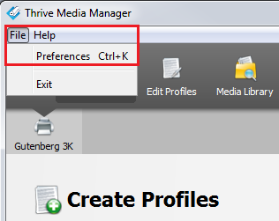
To access the Preferences, click File > Preferences These settings are not modifiable (Figure 1).
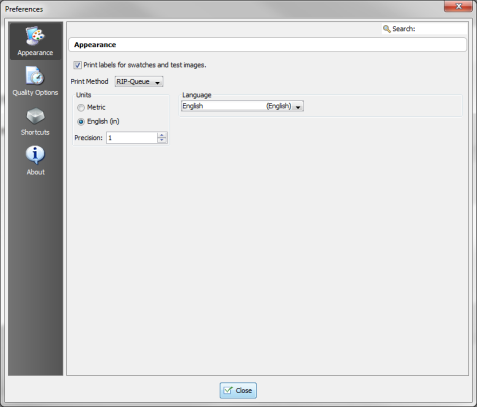
Appearance The Appearance options allow you to customize the general appearance of the application (Figure 2).
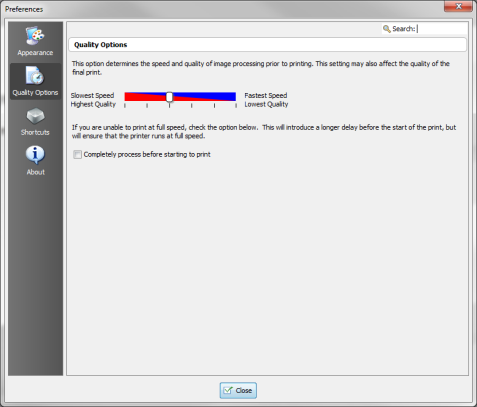
Quality Options This option helps you improve processing speed (figure 2).
When an image is processed, it is processed as Contone data. When it is sent to the printer, that information is reinterpreted as Halftone data. The higher the quality of the data, the better the detail in your image will appear, but the longer it will take longer to process your image. The lower the quality of the data, the lower the detail in your image will appear, but the shorter it will take to process your image.
The default setting will generally give you high quality output with fast processing speeds. However, if you notice some problems with your quality, adjust the slider to the left. If you notice that there are no problems with quality and you want your images to process even faster, adjust the slider to the right. Use the [Completely Process Before Starting to Print] option if your printer begins printing before the image is fully processed.
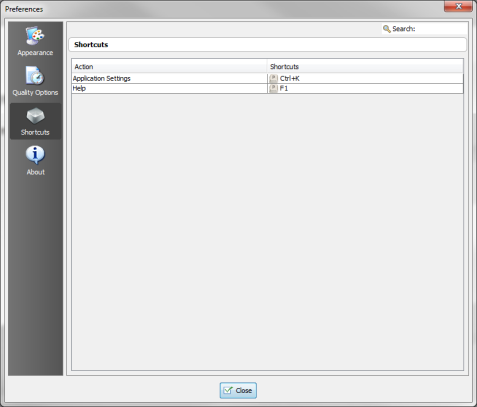
Shortcuts This option lists short cuts in the application. The first column lists the action, the second lists the key stroke short cut for the action. To access the Shortcuts, click Preferences icon from the main toolbar and then Shortcuts icon on the left side tool bar (Figure 4).
These settings are not modifiable.
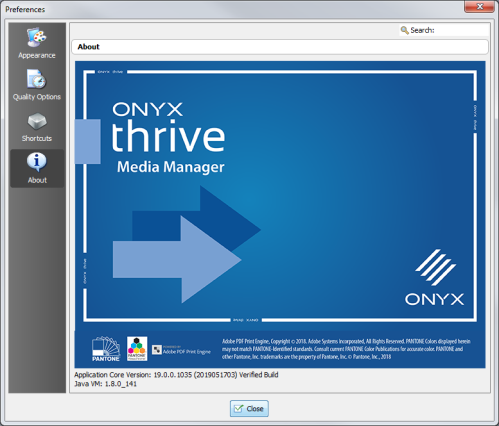
About The About feature of the Settings dialog contains information about your application (Figure 5). This information is not modifiable.
|
Figure 1
Figure 2
Figure 3
Figure 4
Figure 5
|